Show package versions in Jupyter
Keeping track of package versions in bioinformatics is important for multiple reasons. One reason is that it helps maintain reproducibility. Using newer versions of packages might affect your results depending on the package update. Other times, it might explain certain errors you see. Sometimes you will get an error from code you have been using for a while to later discover that a feature you were using in the older version is now deprecated (meaning no longer supported) in the newly installed version.
This is how you can print the package versions in the current environment your Jupyter notebook to help keep track of the package versions you are using in your analysis.
Install and load packages
First, install packages if you need to. In Jupyter, install packages by running !pip install followed by the package name. If we want to install a specific package version, we would write something like this: !pip install package==0.2.7. You can use a single cell to install multiple packages. Also, add the date you installed the packages for future reference.
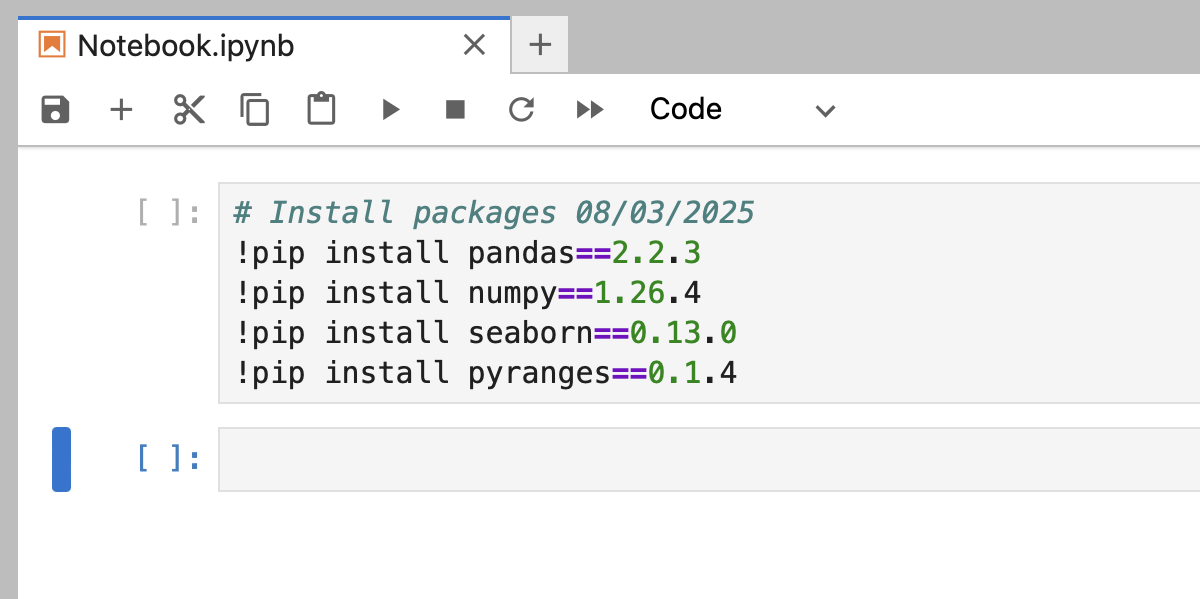
After installing the packages, I like to keep the cell (but commented out). That way, in the future if for some reason you need to reinstall one of those packages, all you have to do is uncomment and rerun the cell.
Next we need to import the installed packages. Using pandas as an example, we will run import pandas as pd. The as pd will allow us to use pd instead of writing out pandas (kind of like a nickname). Similar to the installation, you can import multiple packages in the same cell.
Print package version
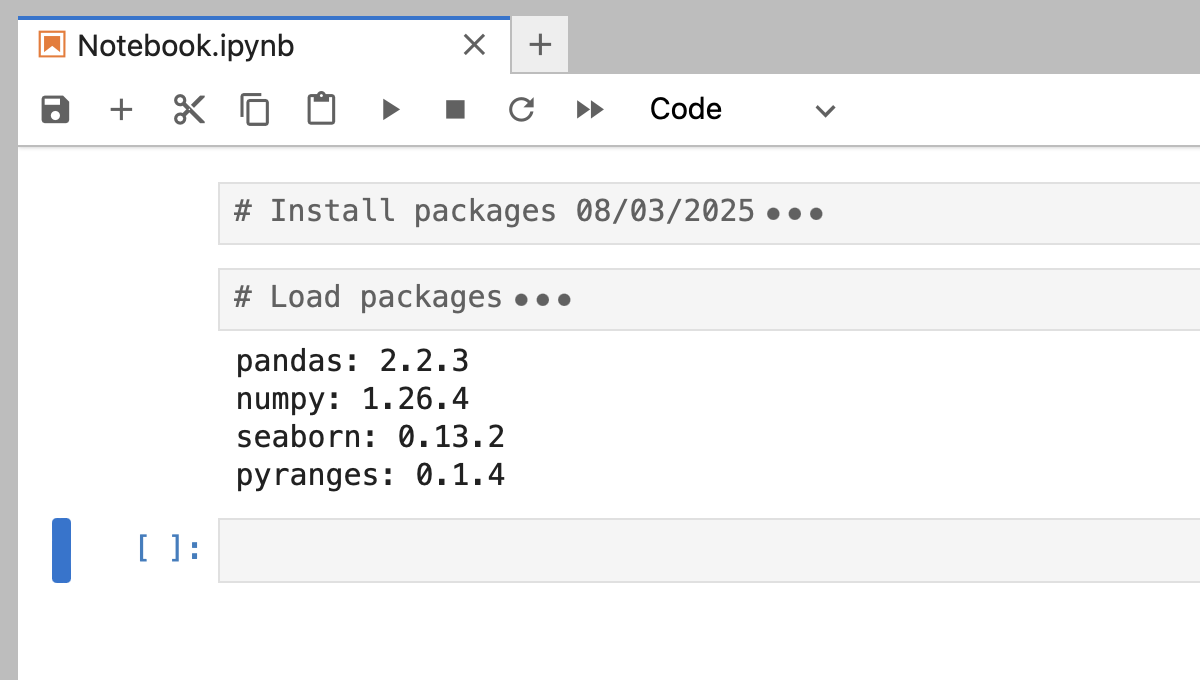
For each package, we are going to add a print statement to output the package version. Continuing to use pandas as an example, since we imported pandas as pd, then we can get the version by running pd.__version__. A number will be printed as output. We want to include the package name next to the version number so our output is not just a list of numbers when we check for all the package versions in the same cell. We can do this by running something like this: print("pandas: " + pd.__version__).

I like to include the package version I installed as a comment at the end of the print statement. That way, we can check the version in the comment and the version in the print output and catch if the numbers don’t match. Now we can reinstall a particular package to the correct version if we need to.

For simplicity, we can collapse these cells and just see the print output!
Copy and Paste
You can copy and paste this code block and update it with the packages you are using!
# date
import pandas as pd
print("pandas: " + pd.__version__) # number
import numpy as np
print("numpy: " + np.__version__) # number
import seaborn as sns
print("seaborn: " + sns.__version__) # number
import pyranges as pr
print("pyranges: " + pr.__version__) # number