Customize Zsh shell prompt
When you begin to use the terminal a lot, you’ll find that customizing your command line prompt is very helpful. You can add color and specific information to make navigating the command line easier.
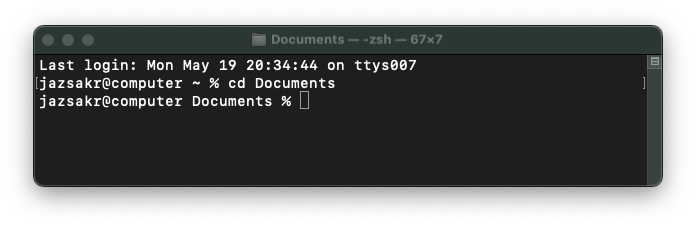
For example, on a Mac, instead of the default looking a little something like this:
I customized mine to look like this:
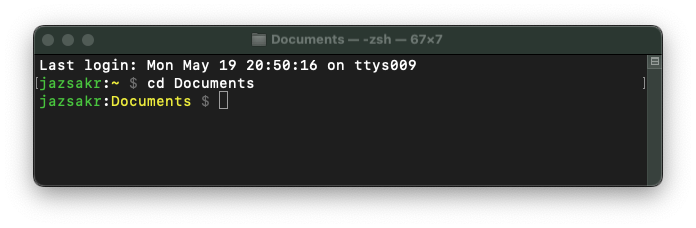
We will do this by editing the .zshrc file. The next two sections will explain what we will be adding to this file.
Customize the Zsh prompt
The default Zsh prompt on macOS is %n@%m %1~ %, where:
| Part | Meaning |
|---|---|
%n |
Username |
%m |
Hostname |
%1~ |
Current working directory |
% |
The standard Zsh prompt symbol |
Notice the space after the Hostname and current working directory (fancy way of saying the folder we are currently in). There are also no text colors.
For my prompt, I wanted to keep the Username and current directory, but also add some color and have no spaces. In order to change it, we need to tell it exactly how we want it to look by editing our Zsh configuration file, called .zshrc in your “home” directory. Every user on a computer gets a folder where everything related to that user gets saved. It’s call a home directory.
First we need to check if this Zsh config file already exists. Open the Terminal and enter cd to take you to the home directory and then enter ls -a. By default, macOS does not have .zshrc so do not be alarmed if you do not see it.
Run nano .zshrc to either edit the existing .zshrc file or create one.
To customize your shell to look like mine, add the following:
PROMPT='%F{green}%n%f:%F{11}%.%f%F{237} $%f '
where:
| Part | Meaning |
|---|---|
%F{green} |
Start green text |
%n |
Username |
%f |
Reset color |
: |
colon (to serve as separator character) |
%F{11} |
Start color #11 (usually light yellow, depends on terminal) |
%.' |
Current working directory, abbreviated with ~ for home |
%f |
Reset color |
%F{237} |
Start color #237 (usually light grey, depends on terminal) |
| ` $` | A space and then a dollar sign (standard prompt symbol) |
%f |
Reset color |
Make sure you delete any other prompt customization in your .zshrc (like PROMPT='%n@computer %1~ %# ' for example.)
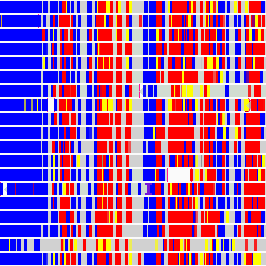
Here are some other colors you can choose from!
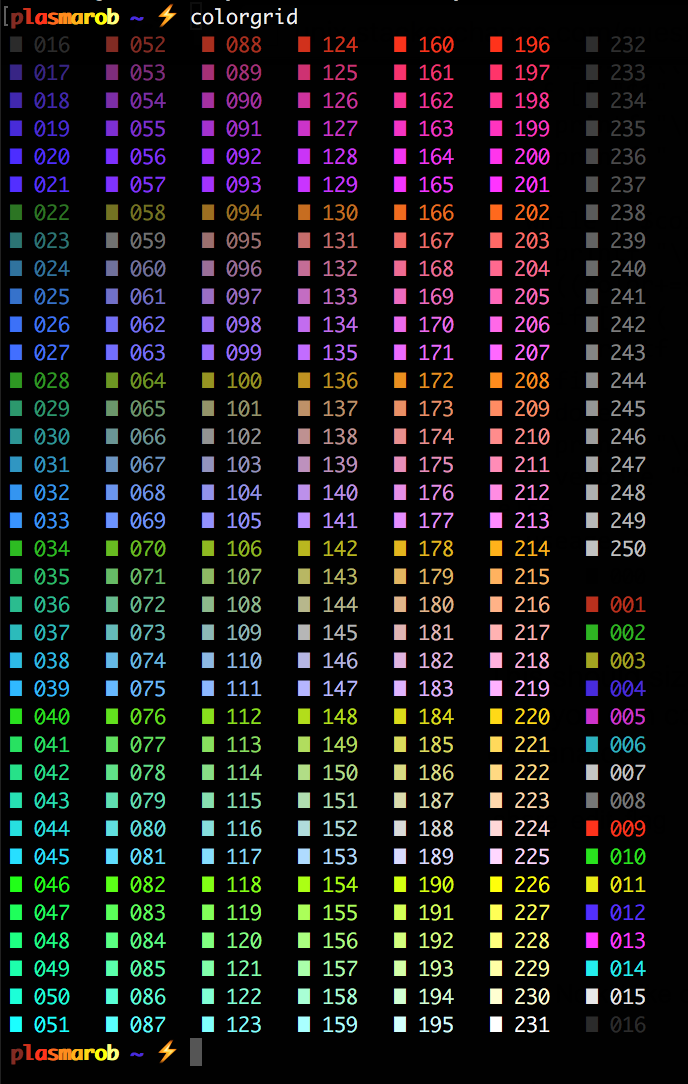 Image Credit: by Plasmarob from this post.
For a full 256 colors cheat sheet with displayed color, Xterm Name, Xterm Number, HEX, RGB and HSL codes check out this link.
Colorize ls output
Next I wanted to color the output of the ls command, which lists the contents of directories. To do so, I added the following to my .zshrc:
export CLICOLOR=1
alias ls='ls -vG'
where export CLICOLOR=1 enables colorized output for the ls command on macOS and alias ls='ls -vG' colorizes the output and sorts files naturally (file1, file2, …, file10 instead of file1, file10, file2).
Save your changes to the .zshrc file. Then run:
source .zshrc
This reloads your Zsh configuration file and apply the changes. Now your prompt should look the way you customized it.
In summary
The following lines where added to my .zshrc to customize the command line prompt and colorize the output of the ls command.
# customize command line prompt
PROMPT='%F{green}%n%f:%F{11}%.%f%F{237} $%f '

# list the output for `ls` in color
export CLICOLOR=1
alias ls='ls -vG'