Using frontmatter in Obsidian notes
One of the great things about using Obsidian is the ability to add metadata to your notes using a frontmatter.
What is a frontmatter?
Frontmatter is where the metadata in Markdown files is written. It is usually at the very top of the page and is written in YAML (or JSON). To add a frontmatter to a Markdown file, on the very first line of the file add three dashes, in the following lines add the metadata you want in YAML syntax, and end the frontmatter by adding another line of three dashes. This results in a three-dashed block at the top of your file. It might look something like this
---
title: "Title of the page"
date: YYYY-MM-DD
tags:
  - tag1
  - tag2
  - tag3
---
Obsidian’s frontmatter
Obsidian is basically a folder of markdown files (and hidden folders of fancy things that make up the Obsidian functionality and related plug-ins). Obsidian supports these properties in the frontmatter of its notes (as of March 2026):
Usually frontmatters are hidden in markdown files, but in Obsidian it shows in the notes. Here is an example using a daily note:
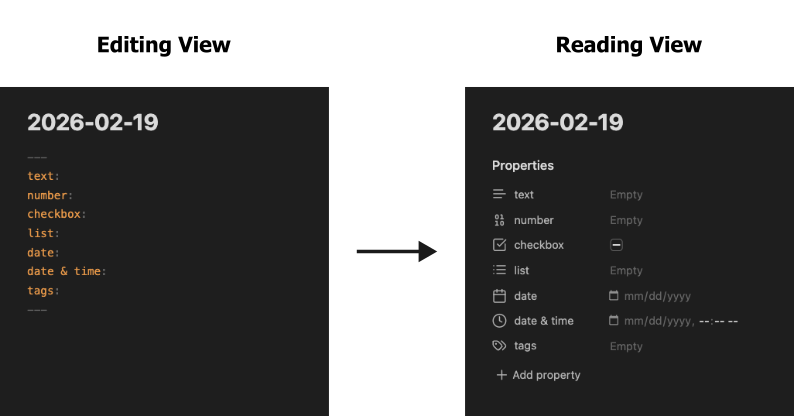
When switching from editing view (left) to reading view (right), the metadata is still visible. You can add properties by typing them out in editing view or in reading view by clicking “+ Add property” at the bottom of the frontmatter. Notice how there are different icons next to each piece of metadata based on the property type. After adding a new property, you can change the type by clicking on the icon on the left hand side of the property. The current property type will have a check mark next to it.
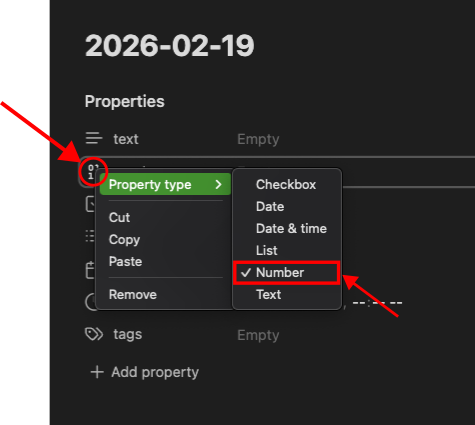
Other properties
Obsidian has a few default properties and these property types cannot be assigned to other properties. One already mentioned is tags and the others are aliases and cssclasses.
aliases are especially useful for things like acronyms and abbreviations. We can use YAML as example. The name “YAML” is a recursive acronym for “YAML Ain’t Markup Language”. In your vault, using the aliases property will point both YAML and YAML Ain't Markup Language to the same note which is efficient because now we do not need to create two separate notes for the same thing. Here is what this alias might look like:
---
aliases:
  - YAML
  - YAML Ain't Markup Language
---
For more information on how Obsidian uses aliases, see the Obsidian aliases documentation.
cssclasses lets you customize individual note styles using CSS snippets. For detailed information on CSS snippets, see the Obsidian CSS snippets documentation.
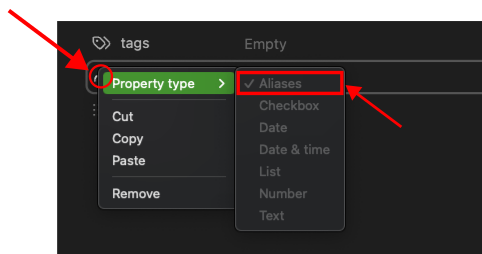
Because these default properties cannot be assigned to other properties, you cannot change this property type. When you click on the icon to try to change the property type, you will not be able to.
Although not listed officially as a property type, you could also use nested objects or a dictionary in your frontmatter, which looks something like this:
---
object:
  object1:
  object2:
---
Although the icon for this property type looks like an error icon, the metadata can be parsed and utilized by Obsidian. To take it one step further, this nested object can be mixed and matched with other property types to create complex and rich metadata:
---
object:
  object1: 67
  object2: text
    - object2a: 56
    - object2b: 99
---
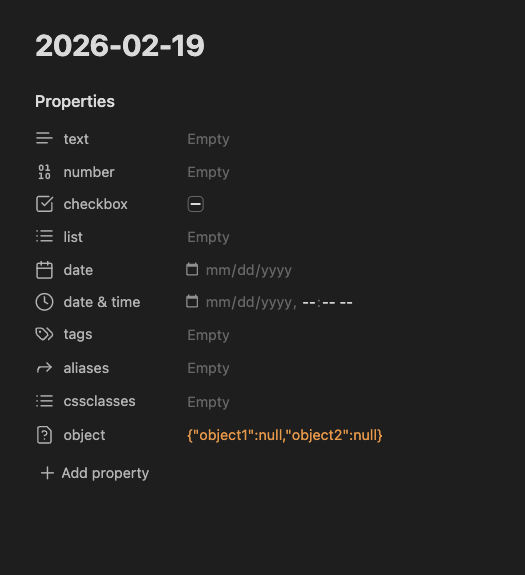
Here is the full example using a daily notes with all the property types mentioned in reading view:
Now what?
Once you have added metatdata to your notes, you now have the ability to parse, search, filter and organize your notes very quickly and efficiently with Obsidian’s core features as well as with community plug-ins. For example, you can create dynamic tables and galleries that are automatically updated when you add new notes with the same metadata. Another is example is that if you add metadata to your daily notes, you can visualize activity in a calendar.